我心目中最好的蘋果滑鼠,可能不是現在 Apple Store 裡的那一隻。
最近,我買了一隻 A1197 無線 Mighty Mouse。
會注意到它,是因為它那顆小滾球。當滑鼠的捲動介面幾乎都變成滾輪或觸控表面,Mighty Mouse 卻讓一顆球待在完整的白色上蓋中央,手指往哪裡滾,頁面就能往哪裡走。
我想買的,其實就是這種不同的操作方式。
拿到實物後,我最先注意到的是它那片光滑、完整的白色上蓋。圓潤的輪廓像一顆被仔細打磨過的白色卵石,沒有左右按鍵的分割線,也沒有一排搶著被看見的功能鍵;中央那顆小滾球,反而成了整個外形最有辨識度的細節。
把它放回二十年前的桌面,這樣的設計在我眼裡,簡直像是來自未來的物件。更有趣的是,拿到今天,它依舊不顯得過時。那種未來感沒有靠誇張的線條或裝飾撐起來,而是來自乾淨的比例、連續的曲面,以及把功能藏得恰到好處的克制。
二十年過去,它看起來仍然像一隻可以在今天重新推出的滑鼠。
直到握住它、按下上蓋、再碰到小滾球,才會發現,這個安靜的外形裡其實藏著比第一眼更多的操作。
它讓我重新想了一次:滑鼠的進步,一定要把所有實體操作都換成觸控嗎?
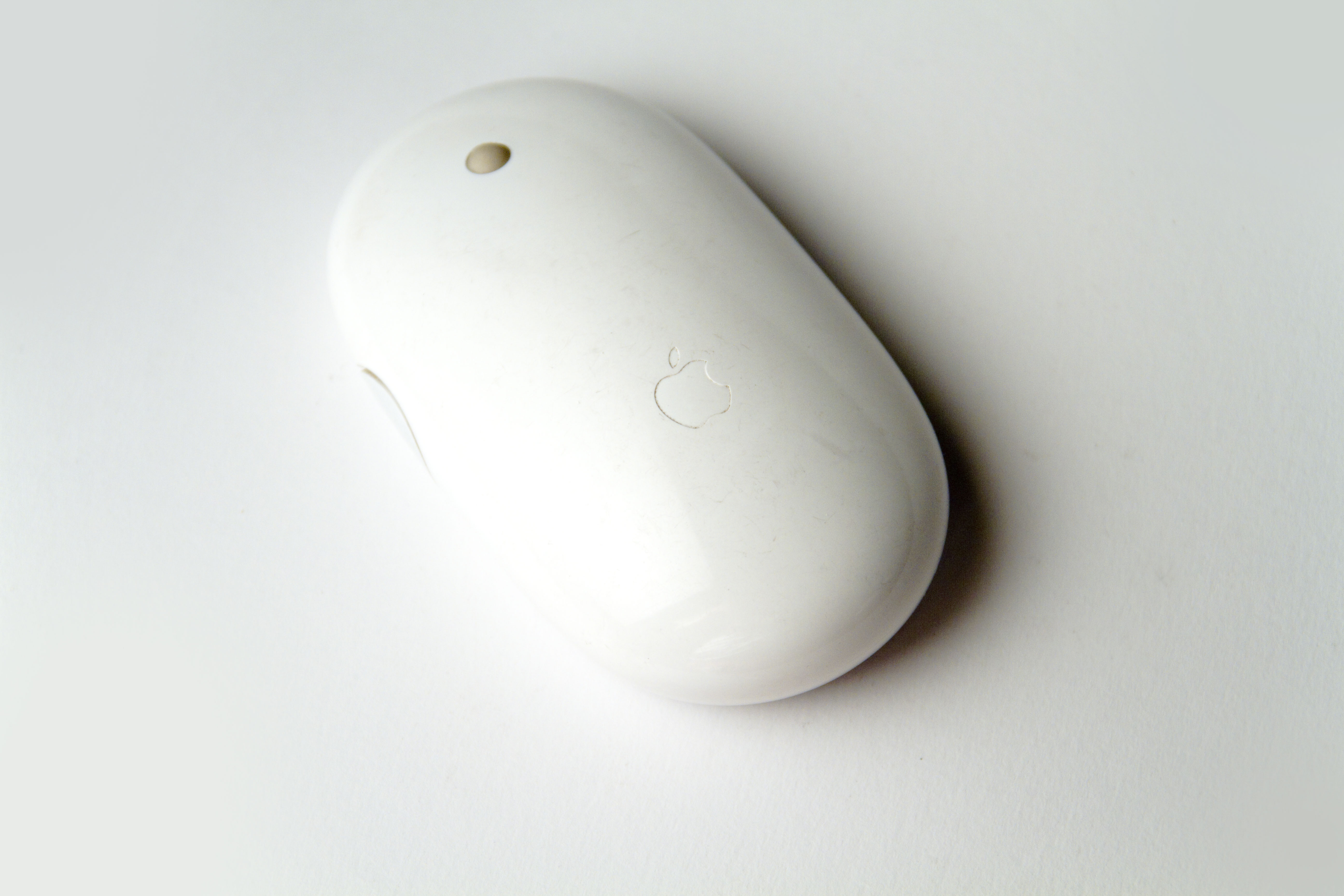

把功能藏進一個簡單的外形
Mighty Mouse 的起點是 2005 年 8 月 2 日推出的有線版。2006 年 7 月 25 日,Apple 再推出無線版,加入 Bluetooth 2.0 與雷射追蹤;我買的 A1197,就是這一代無線型號。
談它的設計背景,很難不想到 Jony Ive 與當時的 Apple 工業設計團隊。Mighty Mouse 並沒有在發表資料中被歸功於一位獨立主設計師,但把它放在 Ive 時代的團隊脈絡裡看,就能感受到那種熟悉的設計語言:乾淨的表面、克制的線條,以及藏在簡單外形裡的功能。
Apple 當年的產品理念很清楚:增加多鍵功能,同時保留單鍵滑鼠的簡單感。完整上蓋透過觸碰感測辨識左右點擊,小滾球能多方向捲動與按下,側邊則能擠壓操作。在我看來,這種設計最迷人的地方,是手指可以慢慢發現它的功能,外形卻始終維持完整。
這也是我覺得有趣的地方。
側邊擠壓讓「握住滑鼠」本身成為一種輸入,不過是否順手,還是很看握法;小滾球則是我最喜歡的部分,尤其是手指能明確感覺到自己正在滾動一個實體物件。
和 Magic Mouse 相比,我還是偏愛那顆球
現代 Magic Mouse 的 Multi-Touch 表面很俐落,能捲動文件、用手勢切換網頁。手指在表面滑過去,就像在一塊縮小的觸控板上操作。
Mighty Mouse 的小滾球,給我的感覺比較具體。
慢慢滾時,我希望能一點一點找到位置;想跨過長頁面時,再快速連滾。往左右移動,也不需要把一顆只能上下轉的滾輪想成別的操作。
這不是規格上的勝負,而是我偏好的手感。
另外一個讓我喜歡 A1197 的地方,是 可更換 AA 電池。它能用一顆或兩顆 AA 電池;沒電就換電池,充電電池也能輪替使用。
反過來看現在的 Magic Mouse,我還是很難忍住吐槽:滑鼠反過來充電,到底是什麼反人類設計?
充電孔放在底部,代表充電時無法使用;2024 年改成 USB-C,也沒有改掉這個使用限制。續航再長,工作做到一半遇到沒電,仍然得暫停滑鼠操作。對我來說,換顆 AA 電池更乾脆。
當然,老硬體也有代價。小滾球需要清潔:捲動變粗糙或失效時,要清除累積的髒污。二手滑鼠還得考慮機構磨耗、電池接點與藍牙連線狀況。軟體能調整手感,不能修好一顆已經卡住的球。
在現代 Mac 上,真正讓我卡住的是捲動
硬體的想法我很喜歡,但把它接上今天的 Mac,不代表手感就會剛好適合我。
第一個痛點是 滑鼠和觸控板的捲動方向。
我希望觸控板維持自然捲動,滑鼠則保留自己熟悉的方向。macOS 雖然有滑鼠和觸控板各自的設定頁面,自然捲動設定卻會連動,無法直接各選一種。這也是 Scroll Reverser 這類工具處理的問題。
第二個痛點是速度和慣性。
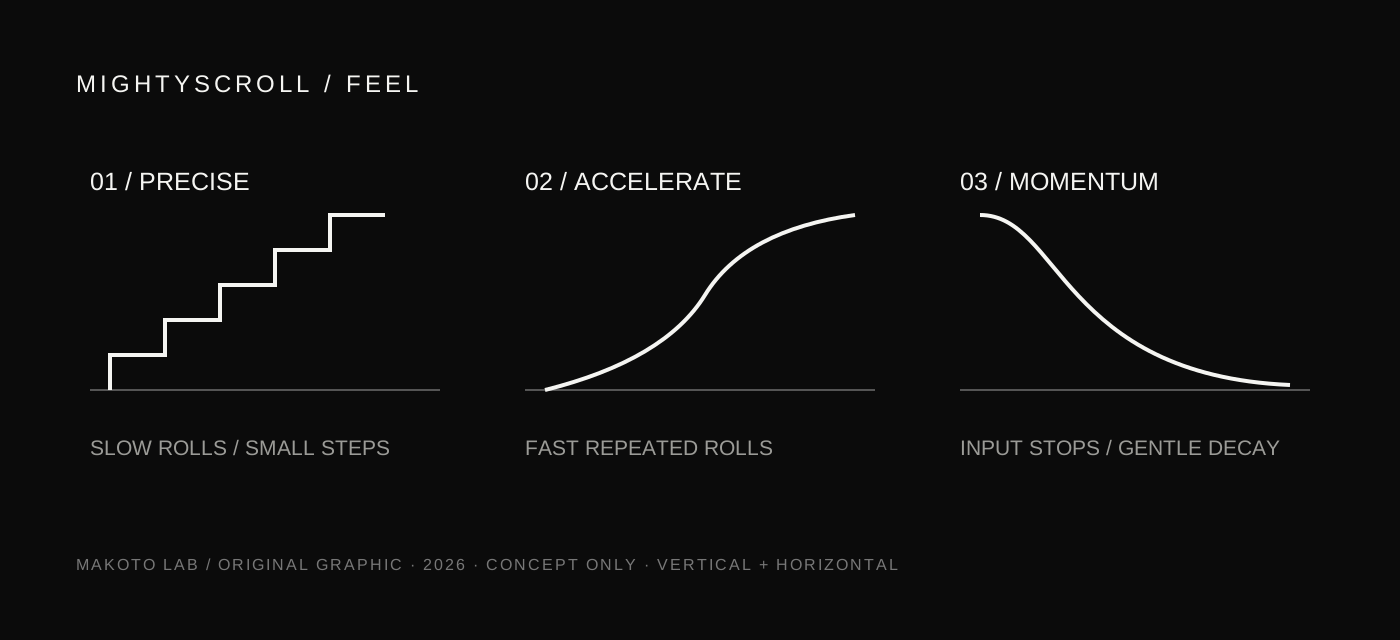
我不是希望所有捲動都變快。閱讀或找某一行時,我要的是慢速精準;翻過一大段內容時,才希望連續快速滾動能加速,而且每次輸入之間有自然的慣性銜接。
預設的反應不符合我的習慣。我想保留那顆小滾球的操作感,卻不想每次都配合系統調整自己的手。
所以,我開始做 MightyScroll。
MightyScroll:讓軟體配合那顆小滾球
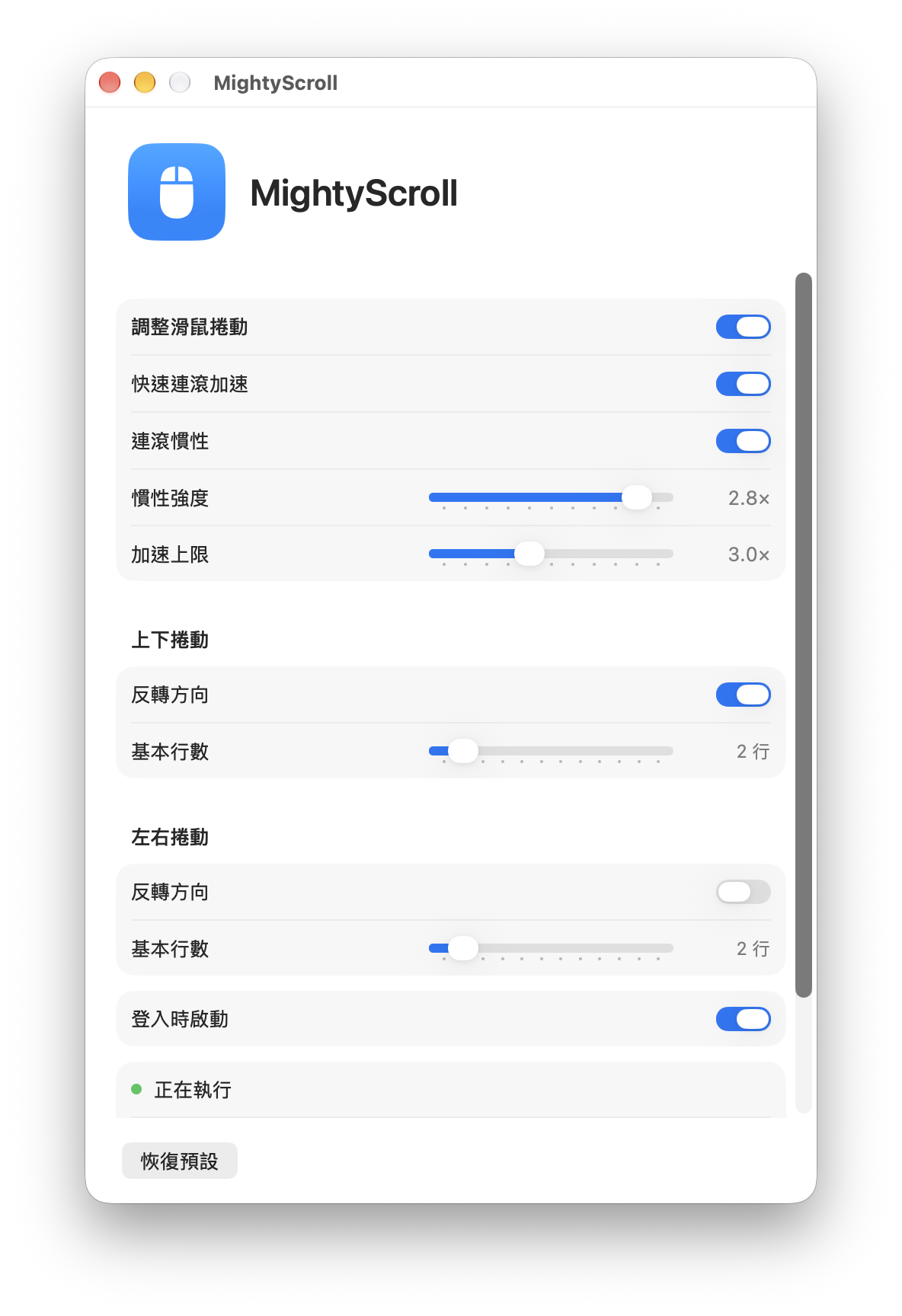
MightyScroll 是我做的 macOS 選單列 App,開發與實機測試使用的就是 A1197。
它的核心很簡單:
- 慢慢滾,保持精準。 可以調整基本捲動量。
- 快速連滾,才加速。 加速上限可調整。
- 慣性銜接每次快速滾動。 停下來後逐漸衰減,也能調整強度。
- 上下、左右都能用。 兩個方向分別設定反轉與基本捲動量。
- 觸控板保留原本習慣。 把滑鼠的方向獨立調整。
目前 MightyScroll 專注在捲動手感,尚未提供中鍵或側邊擠壓按鍵的重新配置。
登入時自動啟動,讓我不用每次開機再手動打開它。每天坐回桌前,就能用熟悉的方式繼續工作。
二十年前的滑鼠,重新回到桌上
調整之後,Mighty Mouse 對我來說,已經更接近一隻願意每天使用的滑鼠。
我喜歡的仍然是原本的硬體:完整上蓋、小滾球、可以換電池。MightyScroll 補上的是它和今天的工作習慣之間,那一小段不順手的距離。
它不會因此擁有 Magic Mouse 的觸控手勢,也不會突然變成適合所有人的滑鼠。對我來說,它的價值就是能保留原本有趣的設計,再把不合習慣的部分調整回來。
這和我做 Makoto Glass 的理由有點像:老硬體不一定只能被收藏。有時候,只是少了一段願意替它繼續工作的軟體。
MightyScroll 已免費開源,採用 MIT 授權。 目前需要 macOS 13.5 或以上,主要驗證裝置是 A1197;Magic Mouse 相容性與 Intel 實機仍未驗證。安裝所需權限及版本限制請看專案 README。
資料來源與圖片授權
- Apple — 有線 Mighty Mouse 發表(2005)
- Apple — 無線 Mighty Mouse 發表(2006)
- Apple — Mighty Mouse 原廠手冊(鏡像 PDF;電池、清潔及 A1197 認證資料)
- Apple — Jony Ive 與設計團隊的官方回顧(2019)
- Apple — Magic Mouse USB-C 規格
- Apple — 充電孔位置與充電時的使用限制
- Pilotmoon — Scroll Reverser 的用途與設定
- MAKOTO LAB — MightyScroll 功能與安裝說明
- Feureau — 無線 Mighty Mouse 照片原頁與 CC BY-SA 3.0 授權
My favorite Apple mouse might be one that Apple no longer sells.
Recently, I bought an A1197 wireless Mighty Mouse.
What caught my attention was the tiny scroll ball. When most mice use either a wheel or a touch surface, this one puts a ball in the middle of a clean white shell. That different way of interacting was what I wanted to try.
Holding it, I first noticed the smooth, uninterrupted white shell. Its rounded shape feels like a carefully polished pebble. There is no dividing line between left and right buttons, no cluster of keys competing for attention. The tiny ball at the center becomes its most distinctive detail.
On a desk twenty years ago, this would have looked to me like an object from the future. What surprises me is how current it still looks today. Its futuristic quality comes from the proportions, the continuous curves and the restraint with which the controls are integrated.
Twenty years later, it still looks like a mouse that could be introduced today.
Only when I hold it, press the shell and roll the ball do the interactions reveal themselves. It makes me wonder whether replacing physical controls with touch is always progress.
More functionality, a simple shape
Apple introduced the wired Mighty Mouse on August 2, 2005, followed by the wireless model on July 25, 2006. The wireless version added Bluetooth 2.0 and laser tracking.
The industrial-design context is Jony Ive and Apple’s design team of that era. The Mighty Mouse announcements do not name a sole lead designer. Viewed in the context of the Ive-era team, though, it has a familiar design language: clean surfaces, restrained lines and functionality integrated into a simple shape.
Apple’s goal at the time was to add multiple controls while keeping single-button simplicity. Touch sensors distinguish left and right clicks beneath a seamless shell; the ball scrolls in multiple directions and clicks, while the sides can be squeezed.
What I find appealing is how the controls can reveal themselves through use while the shape remains uninterrupted. The squeeze control is an interesting idea, though its comfort depends on grip. The ball is the part I most enjoy: my finger has an actual object to move.
Why I prefer the ball to Magic Mouse’s surface
The modern Magic Mouse uses a Multi-Touch surface for scrolling and gestures such as swiping between web pages. I understand the appeal of that smooth, compact touch interface.
But I prefer the more tangible action of rolling a ball. Small movements should help me find a line; repeated fast rolls should carry me through a long page. Horizontal scrolling is part of the same physical interaction.
This is a preference about feel, not a specification contest.
The A1197 also has replaceable AA batteries. It works with one or two. I can swap batteries, including rechargeable AAs, and get back to work.
Which brings me to the modern Magic Mouse: why should a mouse have to lie upside down to charge?
The charging port is on the underside, and the mouse cannot be used while charging. The 2024 USB-C model retains that limitation. Long battery life helps, but swapping an AA feels more practical to me when power runs out mid-task.
Old hardware has its own costs. The scroll ball needs cleaning when dirt makes scrolling rough or stops it from working. A used mouse can also have worn mechanisms, battery contacts or connection issues. Software cannot repair a jammed ball.
The problem on a modern Mac was scrolling
Liking the hardware did not mean its default scrolling suited me.
I want natural scrolling on my trackpad and my familiar direction on the mouse. macOS exposes settings in separate panes, but the natural-scrolling setting is linked. Independent direction control is also the problem addressed by tools such as Scroll Reverser.
Speed and momentum were the other part. I do not want every movement to become faster. I want precise slow scrolling, acceleration only when I roll quickly and repeatedly, and momentum that connects those inputs smoothly.
That became the motivation for MightyScroll.
Making the software fit the ball
MightyScroll is my macOS menu bar app, developed and tested with the A1197. It provides:
- Precise slow scrolling with an adjustable base amount.
- Acceleration during repeated fast rolls, with an adjustable limit.
- Momentum that connects quick rolls and decays after input stops.
- Separate vertical and horizontal direction and amount settings.
- Independent mouse direction while preserving the trackpad’s behavior.
MightyScroll currently focuses on scrolling; it does not yet remap the middle button or side squeeze.
Launch at login means I do not have to open it manually after starting my Mac. It is ready with the same familiar behavior whenever I sit down at my desk.
A twenty-year-old mouse returns to the desk
With the scrolling adjusted, Mighty Mouse feels much closer to something I want to use every day.
What I like is still the original hardware: the shell, the ball and the replaceable batteries. MightyScroll closes the small gap between that design and how I want to work today.
It does not add Magic Mouse’s touch gestures or make the mouse ideal for everyone. It lets me keep an interaction I enjoy and adjust the part that felt awkward.
That is close to why I built Makoto Glass. Old hardware does not always belong only in a collection. Sometimes it just needs software willing to keep working with it.
MightyScroll is free and open source under the MIT license. It requires macOS 13.5 or later. The A1197 is the main tested device; Magic Mouse compatibility and Intel hardware remain unverified. See the README for installation permissions and release limitations.
- MightyScroll project / GitHub ↗
- Download MightyScroll v0.4.1 (Universal DMG) ↗
- Release notes and future downloads ↗
Sources and image licensing
- Apple — Wired Mighty Mouse announcement (2005)
- Apple — Wireless Mighty Mouse announcement (2006)
- Apple — Original Mighty Mouse manual (mirrored PDF; batteries, cleaning and A1197 certification)
- Apple — Jony Ive and the design team (2019)
- Apple — Magic Mouse USB-C specifications
- Apple — Charging-port location and use while charging
- Pilotmoon — Scroll Reverser
- MAKOTO LAB — MightyScroll features and installation
- Feureau — Wireless Mighty Mouse photo and CC BY-SA 3.0 license