音響明明就在旁邊,為什麼還要再買一台?
AirPulse 的起點,不是什麼宏大的產品計畫。只是朋友客廳裡有一台跑 Android TV 的 ViewSonic 投影機,而它內建的音響,實在不太能讓人滿意。
畫面可以投得很大,聲音卻讓人很想另外想辦法。但我們目前又不想為了這件事,再花錢買一組音響。
身為客家人(並不是),我是不會花一毛錢在這種沒必要的事上的。
買音響太浪費,花時間自己寫一套就不算。
然後,我們想起來:客廳不是已經有一顆 HomePod mini 了嗎?
設備都在同一個房間,也連著網路。照理說,把聲音交給旁邊那顆喇叭,應該不是什麼過分的要求。
結果,最短的物理距離,隔著最不想互相認識的兩個生態系。
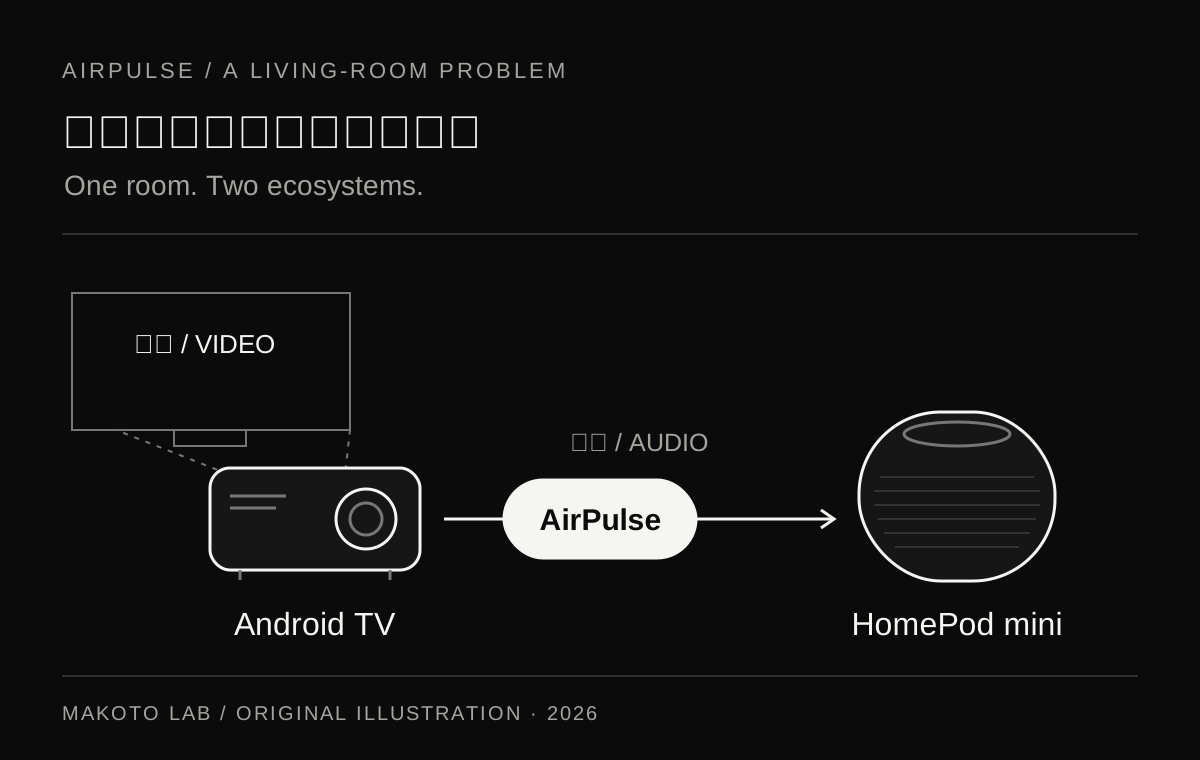
同一個客廳,兩套遊戲規則
HomePod mini 有 Apple 自己安排好的使用方式。Apple 的官方規格列出了從 iPhone、iPad、Apple TV 或 Mac 等裝置透過 AirPlay 分享音訊的路徑,但這不會自動替我們那台 Android TV 投影機變出一個原生音訊輸出選項。
我不是想把整個客廳換成 Apple,也不是要再加一台設備,只是想讓已經買好的兩樣東西一起工作。
於是,我們上網找了不少現成方案。但對我們當時的需求來說,找到的解法總有地方卡住:不是聲音落後畫面太多,就是介面放到 Android TV 上,用遙控器操作很不順手。
只要能播音樂,和能舒服地看影片,是兩件不同的事。
聽音樂時,晚一點開始播放,可能還可以接受。看影片時,嘴巴已經動了,聲音還在路上,那段距離就突然變得非常明顯。
所以,我決定自己寫。AirPulse 是我開發的 Android/Android TV 音訊橋接工具,將裝置允許擷取的播放音訊,透過區域網路送往 HomePod mini 等相容的 AirPlay 接收端。
影音同步,不一定代表聲音比較快
開始寫之前,我直覺以為:只要把聲音傳得夠快,問題就結束了。
後來才發現,能同時控制畫面與音訊的播放器,還有另一種處理方式:讓畫面等聲音。
如果音訊要晚一點才到,畫面也跟著晚一點出現,兩者就可以重新對齊。這處理的是「一起發生」,不一定是「更早發生」。播放器擁有整條影音時間軸,能做的調整,自然也比較多;Apple 的播放同步 API也是在這種時間軸控制的脈絡下工作。
但我當時要做的,是一個在其他 App 外面工作的音訊橋接器。
影片不是我播的,畫面也不是我畫的。我不能要求每一個播放器,都為了 AirPulse 把畫面往後挪。
別人的播放器能讓畫面等聲音;我得盡量讓聲音追上畫面。
我終於看懂:我的工具少了一個可以調整的旋鈕。
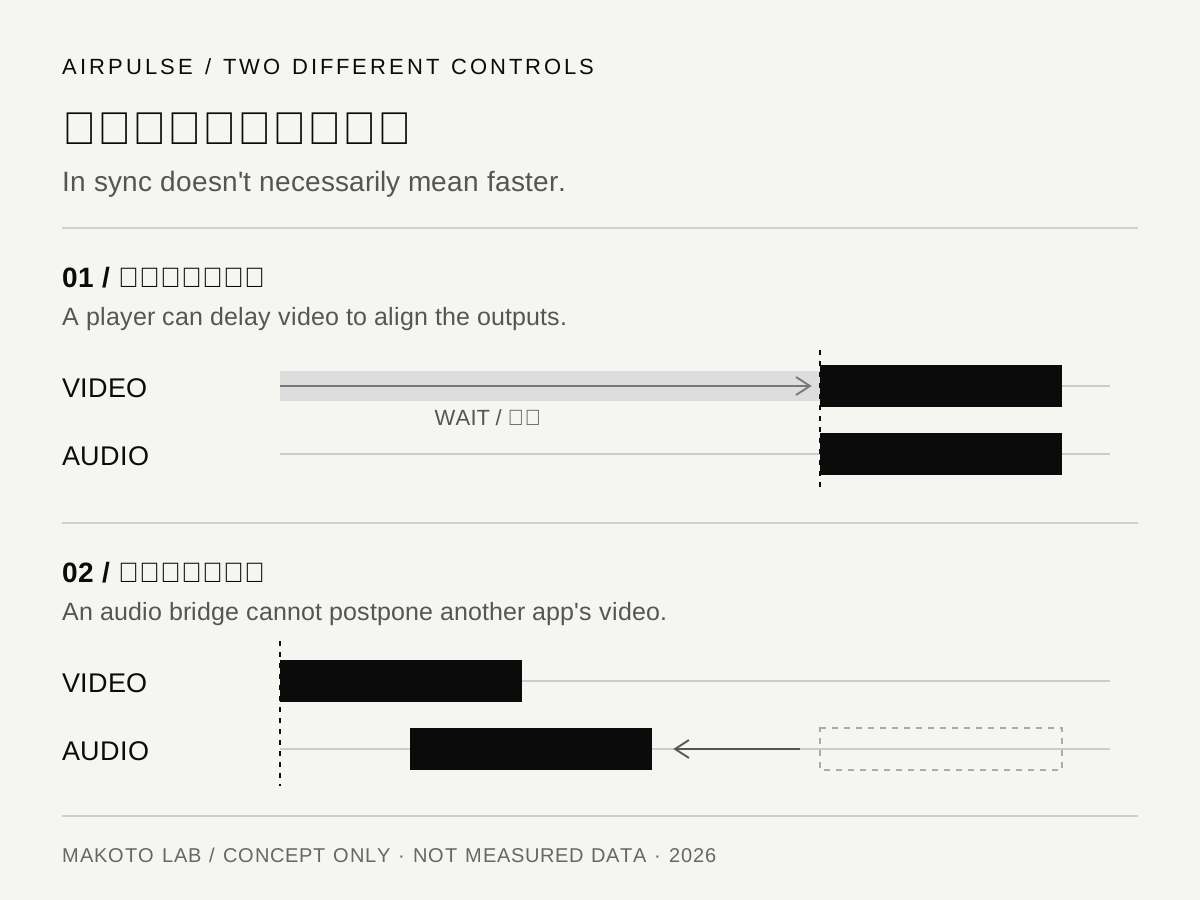
我能動的,是聲音經過的那條路
AirPulse 要做的,不只是把一個音樂檔案交給另一台機器播放,而是把 Android 正在播放、且允許擷取的音訊,持續接起來送出去。
聲音要先被擷取,經過必要的取樣率轉換與緩衝,再分成封包、配上時間資訊,送往接收端。到了喇叭那一邊,也還有它自己的接收與播放流程。
每一段看起來都只是一點點,接在一起,就成了看影片時會注意到的落差。
所以,比起只盯著 Wi-Fi 傳得快不快,我更在意的是:這段聲音,到底在哪裡多等了一下?
目前程式裡的幾個處理,就來自這個問題:連線準備完成後先清掉擷取管線中累積的舊音訊;用小區塊持續讀取;讓取樣率轉換保留連續狀態;也讓音訊封包與播放排程使用一致的時間基準。這些都能在 AirPulse 原始碼裡找到。
目的不是把緩衝全部刪光,而是避免它在不知不覺間,變成一條排得太長的隊伍。
GPT 說,那是 hi-hat
開發過程中,還有一個讓我氣到笑的插曲。
有一次更新完程式,聲音突然開始「噠噠噠」。我實在找不出哪裡出了問題,只好請出 GPT 幫忙,還錄了現場的畫面給它分析。
偏偏那段錄影,剛好在放國蛋的音樂。
GPT 跑了一個半小時,最後給我的結論是:那是音樂裡的 hi-hat。
我真的是氣到笑。
後來還是自己手動找了很久,才想到:我前面動過取樣率。
那次的播放音訊擷取是 48 kHz,而我當時的 AirPlay 串流路徑用的是 44.1 kHz。兩邊得做重取樣,原本交給 Android 自動處理的轉換,在那套設備與設定下效果很不理想。
於是,我自己重寫了重取樣器,接手 48 kHz 到 44.1 kHz 的轉換,才終於把那串「噠噠噠」解決掉。
國蛋的鼓沒問題,有問題的是我的取樣率。
150 ms,是目前找到的平衡
反覆調整後,我把低延遲模式收斂到介面標示的 150 ms。
但這裡要把數字說清楚:它是 AirPlay 串流的延遲/播放排程預設,不是拿儀器量出「投影機產生音訊,到 HomePod 真正出聲」的完整端到端延遲。擷取、裝置處理、網路與接收端,仍然可能再加上時間。
我在這套設備上繼續往下壓時,就開始遇到斷音與疑似封包被丟棄的狀況。原因還可能涉及傳送排程與接收端緩衝,不能把這次經驗當成所有裝置的共同下限。
緩衝太大,聲音會落後;緩衝太小,聲音又可能來不及接上。真正要找的,是這套設備能穩定工作的範圍。
目前程式提供的預設還有 250 ms 與 500 ms。網路與接收設備不同,就不該假設同一個設定永遠最好。
我想做的不是一個漂亮的最低數字,而是坐回沙發後,不用一直想著延遲的聲音。
遙控器好不好用,也是功能的一部分
還有一件事,寫到電視上就很難忽略:操作它的人,手上通常沒有滑鼠。
把手機介面放大,不會自動變成好的電視介面。方向鍵現在停在哪裡、下一步會移到哪個按鈕、連上的是哪台喇叭、音量到底調到誰,都得讓人坐在沙發上也看得懂。
所以 AirPulse 也做了針對 Android TV 的裝置列表、焦點操作與連線狀態呈現,並加入透過無障礙服務處理音量鍵的方式,讓遙控器可以控制接收端音量。這些功能需要相應的權限與裝置支援,不是裝上就能跳過系統限制。
對我來說,「能傳聲音」是開始,「不用站起來研究怎麼操作」才比較接近完成。
題外話:它還需要一點強制進氣
順便替這台投影機說句話:各方面的性價比,其實都挺高的。
只是我們這台在原廠狀態下,每播半小時左右,就會黑畫面一陣子。我們當時判斷是過熱,也就是俗稱的「熱當」。影片還沒播完,投影機先中場休息。
於是,我們很土炮地替它加上一顆電腦風扇,強制進氣。先是下面這個版本,讓投影機繼續上工。
接著,我們又開始討論怎麼把風集中送進去、不要從旁邊散開。於是有了這段「強制空冷 2.0」的客廳研發對話。
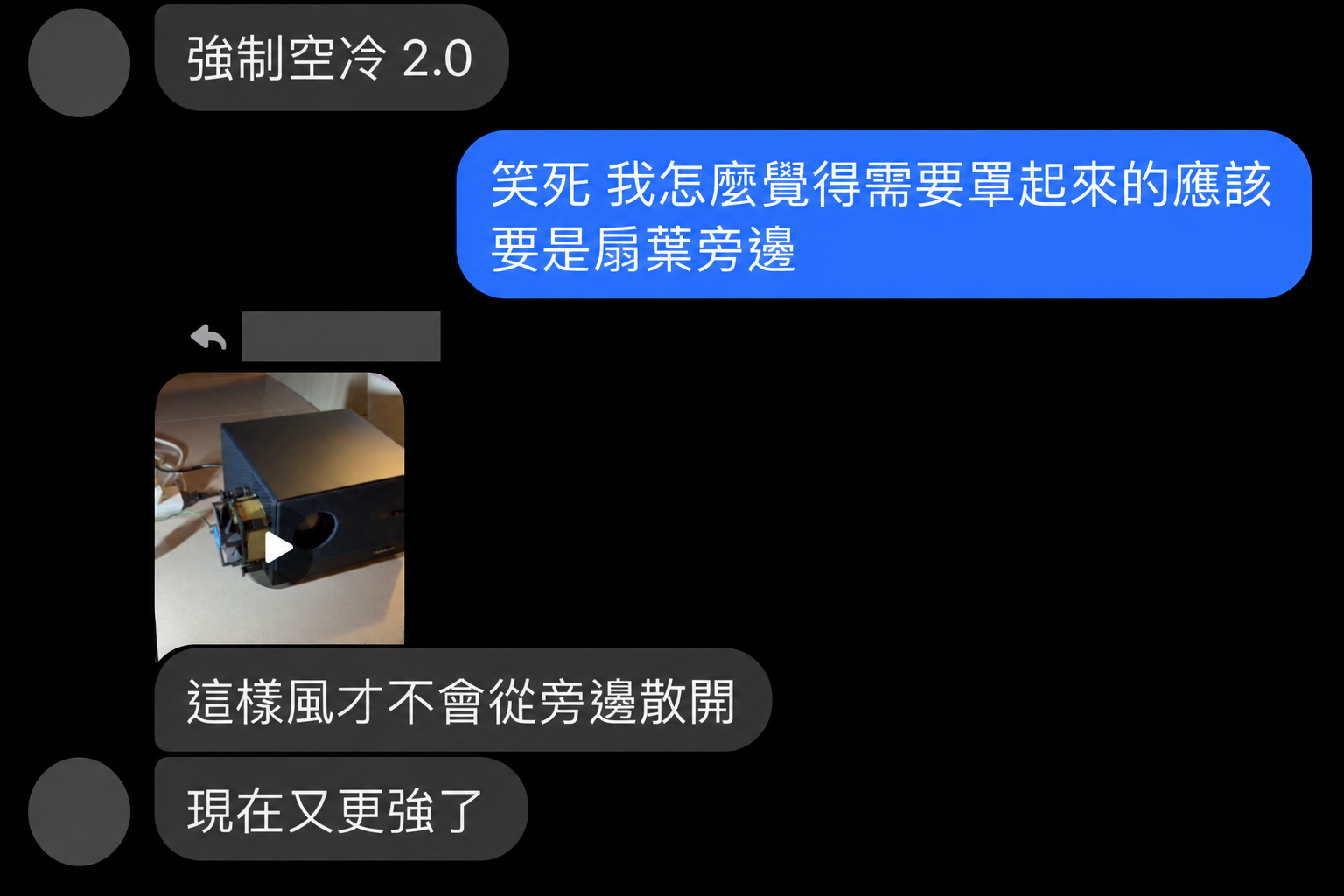
討論完,再繼續加裝、改良。下面這段,才是後來的樣子。
結果,加上去之後,在我們後續的使用裡,就再也沒有遇到同樣的當機。
聲音靠自己寫,散熱靠自己裝。這台投影機買回來,還附贈兩份作業。
這是我們這台設備的使用經驗,不是同型號的通案判定,也不是改裝教學。外接風扇涉及電源、裸露扇葉與氣流設計;遇到過熱應優先檢查通風並洽原廠,不建議照做。
不想換設備,於是補一段軟體
AirPulse 仍然有邊界。Android 的播放音訊擷取需要授權,也會受到來源 App 的擷取政策限制;不能因為某個 App 有聲音,就保證另一個 App 可以取得它。不同接收端、韌體與網路環境,也需要個別驗證。
它不是讓所有 Android App、所有 AirPlay 裝置瞬間完美相容的魔法。
但我喜歡這個專案的起點:不是客廳少了一顆喇叭,而是已經有的喇叭,還少了一條可以走過去的路。
做 Makoto Glass 時,我想讓舊硬體繼續和今天的手機合作;做 MightyScroll 時,我想保留喜歡的滑鼠,再調整不順手的部分。AirPulse 則是把同一個問題,搬到了朋友家的客廳。
有時候,不需要再買一台。需要的是讓手上這幾台,終於願意一起工作。
資料來源與圖片說明
- 本文的客廳情境、使用感受與調校過程,為我的開發經驗;150 ms 沿用介面預設名稱,不是端到端量測保證。
- MAKOTO LAB — AirPulse 原始碼(本文核對版本):低延遲預設、音訊擷取、緩衝清理、串流時鐘與 TV 操作。
- Apple — HomePod mini 技術規格
- Apple — AVPlayer sourceClock:播放器時間基準與同步控制。
- Android Developers — Capture video and audio playback:播放音訊擷取的授權與來源政策限制。
- 兩張 SVG 示意圖為 MAKOTO LAB 原創,非測試數據或品牌背書;中英圖片依語言切換。
- 散熱影片與對話圖片由我提供,僅作本文現場紀錄。影片移除音軌;對話經影像工具裁切、匿名化並另製英文譯圖,未公開原始聊天截圖。
The speaker was right there. Why did we need to buy another one?
AirPulse did not begin with a grand product plan. It began with a ViewSonic projector running Android TV in my friend’s living room, and built-in speakers that left a lot to be desired.
The picture could fill a wall. The sound made us want a different solution. But we weren’t ready to spend money on another set of speakers.
As a Hakka person (I’m not), I wasn’t about to spend a single cent on something this unnecessary.
Buying speakers would be wasteful. Spending my own time building the software apparently doesn’t count.
Then we remembered the HomePod mini already sitting in the room.
The devices were in the same space, connected to a network. Asking one to play the other’s sound didn’t seem unreasonable.
Apparently, a very short physical distance can still cross a very large ecosystem boundary.
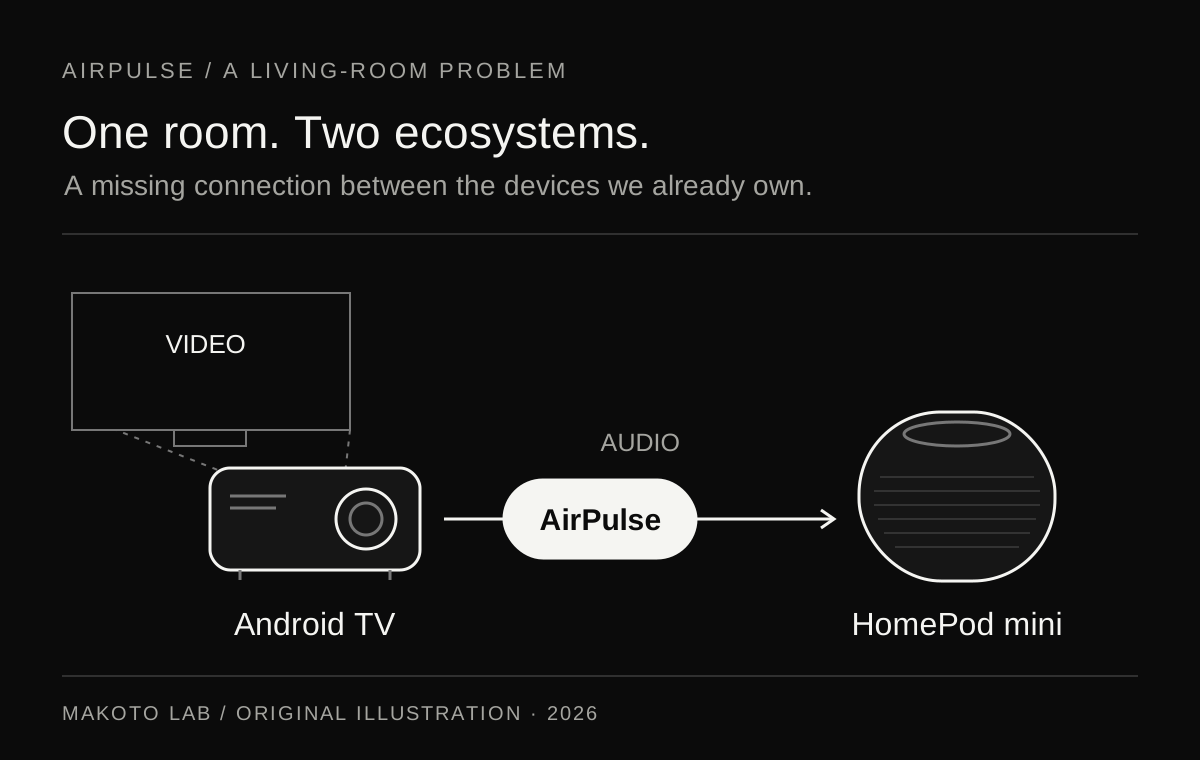
One living room, two sets of rules
HomePod mini fits the playback paths Apple has built for it. Its official specifications describe sharing audio over AirPlay from devices such as an iPhone, iPad, Apple TV or Mac. That doesn’t give our Android TV projector a native audio-output option.
I didn’t want to replace the room with Apple hardware or add another box. I wanted the things we already owned to work together.
We looked for existing solutions. For our needs at the time, there was always a catch: too much delay between picture and sound, or an interface that felt awkward on Android TV with a remote.
Playing music and comfortably watching video are different problems.
With music, a delayed start may be tolerable. With video, a moving mouth and a voice still on its way make the gap much harder to ignore.
So I started building AirPulse, my audio bridge for Android and Android TV. It sends playback audio that the device permits it to capture over the local network to compatible AirPlay receivers such as HomePod mini.
In sync doesn’t necessarily mean faster
My first assumption was simple: send the audio quickly enough, and the problem goes away.
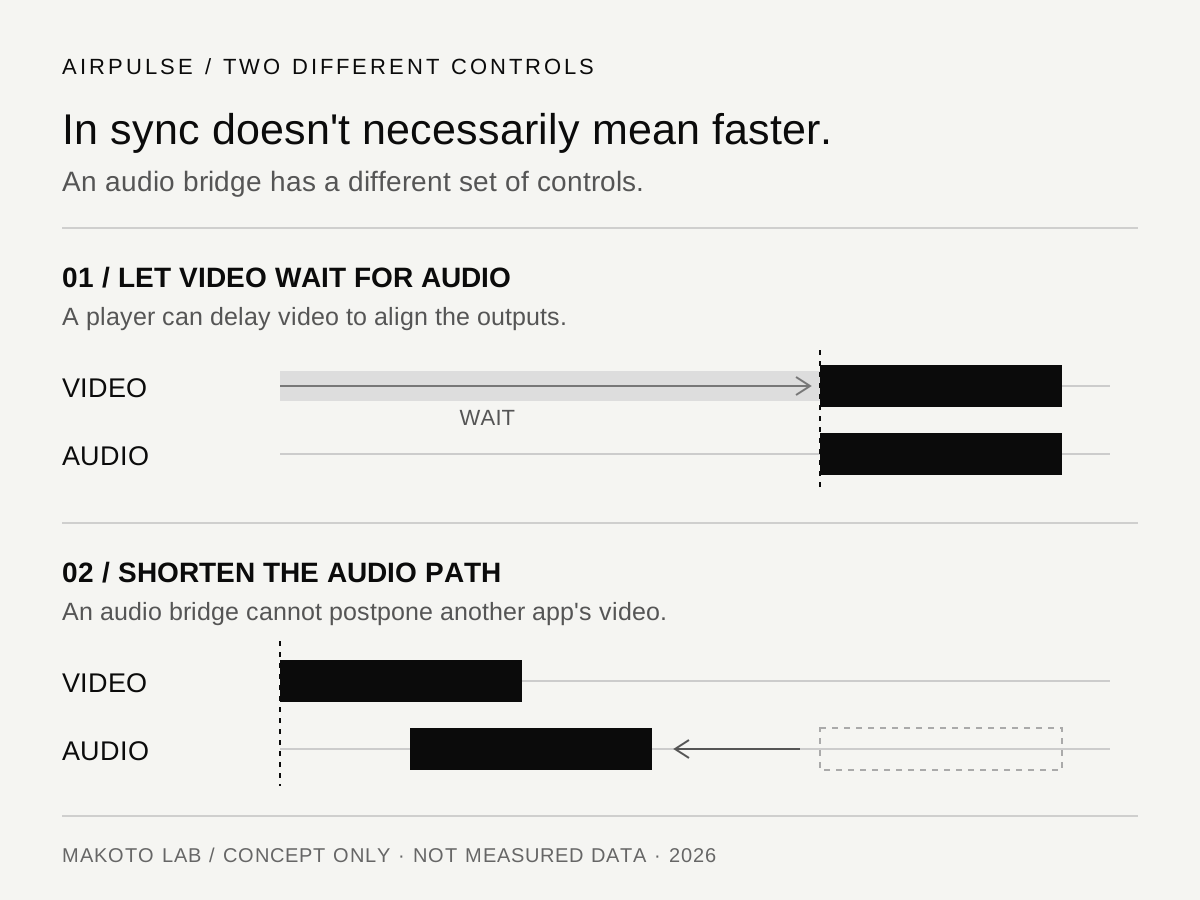
Then I realized that a player controlling both picture and sound has another option: make the picture wait for the audio.
If the sound arrives later, showing the corresponding frame later can align them again. That solves “happening together,” not necessarily “happening sooner.” Owning the whole playback timeline gives a player more control; Apple’s playback synchronization APIs operate in that context too.
But the tool I wanted was an audio bridge running outside other apps.
I wasn’t playing their videos or drawing their frames. I couldn’t ask every player to postpone its picture for AirPulse.
A player can make the picture wait. My bridge has to help the sound catch up.
That was the moment I understood which control my tool didn’t have.
Working on the path I could control
AirPulse isn’t merely handing a music file to another device. It needs to keep taking Android’s ongoing playback audio, where capture is permitted, and sending it onward.
The sound passes through capture, any necessary sample-rate conversion and buffering, packetization and timing, then the network. The receiver still has its own processing and playback path.
Small waits accumulate into a gap you can notice while watching video.
Rather than only asking whether Wi-Fi was fast, I started asking: where is this sound spending time waiting?
Several details in the current implementation come from that question: draining stale captured audio after connection setup, reading small chunks, preserving state across sample-rate conversion, and keeping audio packets and playback scheduling on a shared time base. These are visible in the AirPulse source.
The goal isn’t to remove every buffer. It is to stop buffering from quietly becoming an unnecessarily long queue.
GPT said it was the hi-hat
One debugging episode was so frustrating that I ended up laughing.
After an update, the audio suddenly developed a repetitive clicking sound. I couldn’t work out what had gone wrong, so I asked GPT for help and gave it a video recording of the problem.
The recording happened to have a song by Taiwanese rapper GorDoN playing in the background.
GPT spent an hour and a half analyzing it. Its conclusion: that sound was the hi-hat in the music.
I genuinely didn’t know whether to laugh or be angry.
After a long stretch of manual debugging, I finally remembered that I’d changed the sample rate.
That playback-capture path was running at 48 kHz, while my AirPlay streaming path used 44.1 kHz. The audio needed resampling, and the conversion I’d left Android to handle wasn’t working well on that particular setup.
I rewrote the resampler to handle the 48 kHz to 44.1 kHz conversion myself. That finally got rid of the clicking.
GorDoN’s drums were fine. My sample rates weren’t.
150 ms is a balance, not a universal promise
After repeated adjustments, I settled on the low-latency preset labeled 150 ms in the interface.
That number needs context. It is the AirPlay stream’s latency and playback-scheduling preset, not an instrumented end-to-end measurement from audio generation on the projector to sound leaving the HomePod. Capture, device processing, networking and the receiver can add time.
On my equipment, pushing it lower produced dropouts and what appeared to be discarded packets. Transmission scheduling and receiver buffering could also be involved, so this isn’t a universal lower limit for every device.
Too much buffering makes sound late. Too little can leave playback without the next piece of audio in time. The useful setting is the one that remains stable on the equipment in front of you.
The current presets also include 250 ms and 500 ms. Different networks and receivers shouldn’t be expected to prefer the same setting.
I don’t want a prettier minimum number. I want to sit back on the sofa and stop thinking about delay.
The remote is part of the feature
A television makes one design constraint very obvious: the person using it probably isn’t holding a mouse.
Enlarging a phone interface doesn’t make a good TV interface. Focus, the next directional-key action, the connected speaker and the volume destination all need to make sense from the sofa.
AirPulse therefore includes an Android TV device list, directional focus navigation and connection status, along with accessibility-service handling for volume keys to control the receiver. These features need the relevant permissions and device support; installation doesn’t bypass platform restrictions.
For me, sending audio is the beginning. Not having to get up and study the controls is closer to finishing.
A detour: it also needed forced-air cooling
To give the projector some credit, I think it offers very good value overall.
Our particular unit did have a habit, though: in its stock configuration, the picture would go black for a while after roughly half an hour. We suspected overheating. Apparently, the projector wanted an intermission before the movie was over.
So we improvised, adding a computer fan to force air into it. This earlier version got the projector back to work.
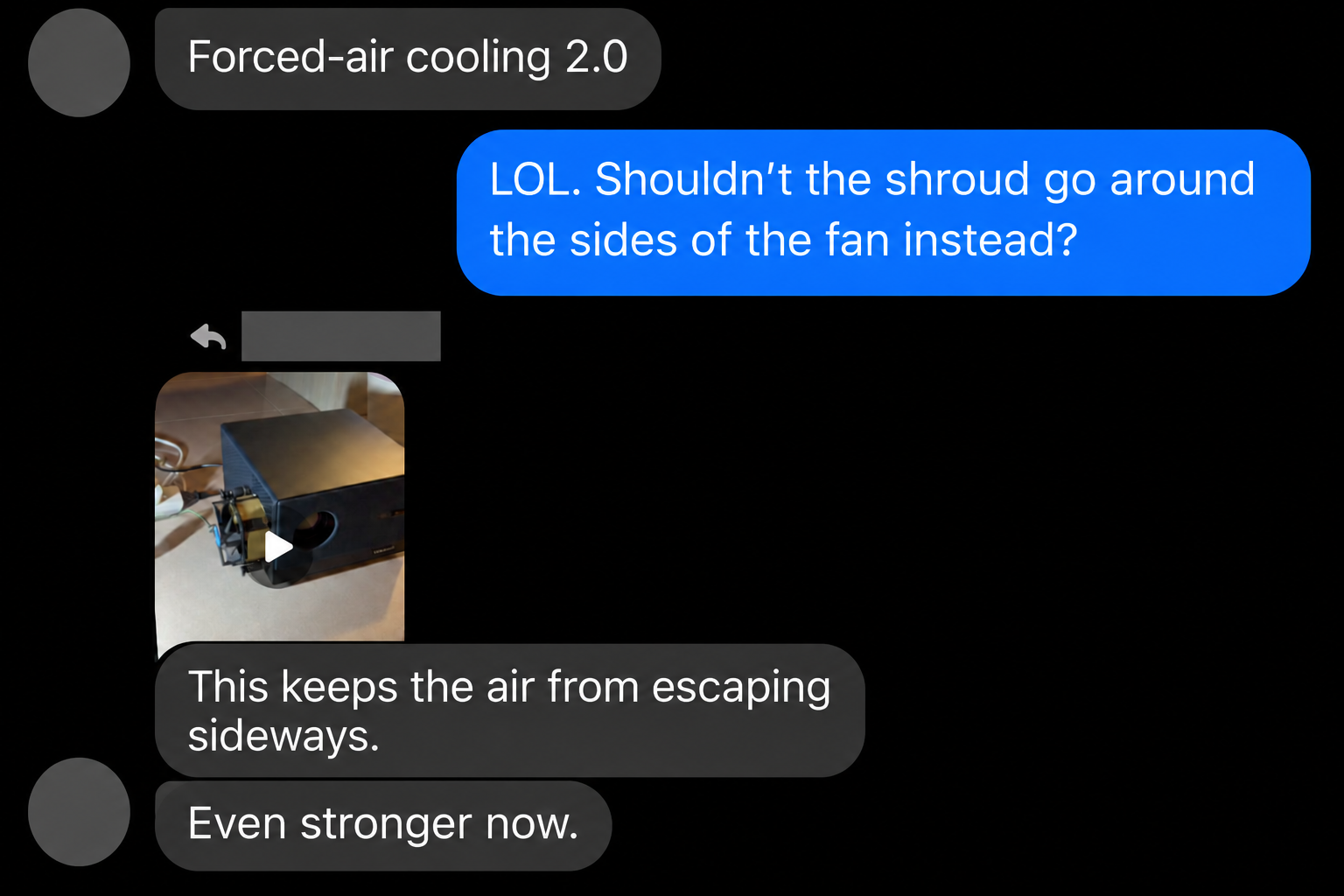
Next came a discussion about concentrating the airflow instead of letting it escape around the sides. That led to this piece of living-room R&D, dubbed “forced-air cooling 2.0.”
After the discussion, we continued adding to and refining the setup. The clip below shows that later version.
After adding the fan, we haven’t encountered the same crash in our subsequent use.
Write the audio fix. Install the cooling fix. Buying this projector came with two homework assignments.
This is our experience with one unit, not a model-wide diagnosis or a modification guide. External fans raise power, exposed-blade and airflow concerns. For overheating, check ventilation and consult the manufacturer rather than copying this setup.
Keep the hardware. Add the missing software.
AirPulse still has limits. Android playback capture requires authorization and depends on the source app’s capture policy. An app making sound doesn’t automatically mean another app can capture it. Receivers, firmware and network conditions also need individual testing.
This isn’t magic compatibility for every Android app and every AirPlay device.
But I like where it started. The room wasn’t missing a speaker. The speaker was missing a path from the projector.
With Makoto Glass, I wanted older hardware to work with today’s phone. With MightyScroll, I wanted to keep a mouse I liked and adjust what felt wrong. AirPulse brought the same question into my friend’s living room.
Sometimes, we don’t need another device. We need the ones we already own to finally work together.
Sources and image notes
- The living-room story, impressions and tuning process are my development experience. “150 ms” follows the interface’s preset label, not a guaranteed end-to-end measurement.
- MAKOTO LAB — AirPulse source snapshot used for this article: latency presets, audio capture, stale-buffer draining, stream timing and TV interaction.
- Apple — HomePod mini technical specifications
- Apple — AVPlayer sourceClock: player time bases and synchronization.
- Android Developers — Capture video and audio playback: capture authorization and source-policy restrictions.
- Both conceptual SVG illustrations are original MAKOTO LAB graphics, not benchmark results or brand endorsements. Each has its own Chinese and English version.
- I supplied the cooling clips and chat image for this account. The clips have no audio; the chat was cropped and anonymized with an image-editing tool, with a separate translated English image. The original private screenshot is not published.